ParentSquare and SchoolTool Information
ParentSquare Information

Since the 2024-25 school year, Cobleskill-Richmondville Central School District uses ParentSquare for school communication, primarily with email, text and app notifications.
ParentSquare is the communication platform used by the District Office and building principals to send mass notifications. Additionally, ParentSquare will provide a platform for teachers to communicate directly with families through direct messaging and newsletters.
ParentSquare automatically generates an account for each parent, using their preferred email address and phone number. We encourage parents to access their accounts so they can download the mobile app and update their preferences on when and how they are notified.
Here’s what you can do with ParentSquare:
- Receive messages from the school via email, text or app notification
- Choose to receive information as it comes or all at once with a daily digest at 6pm
- Communicate in your preferred language
- Comment on school postings to engage with your school community
Direct message teachers, staff and other parents
- Participate in group messages
- Sign up for parent-teacher conferences
- Send payments, sign forms & permission slips, receive report cards, sign up to volunteer and more all from your desktop or mobile device
Watch the video below for a brief overview of ParentSqaure:
Watch the ParentSquare Parent & Guardian Training and check out the Parents & Guardians Getting Started Guide to learn more.
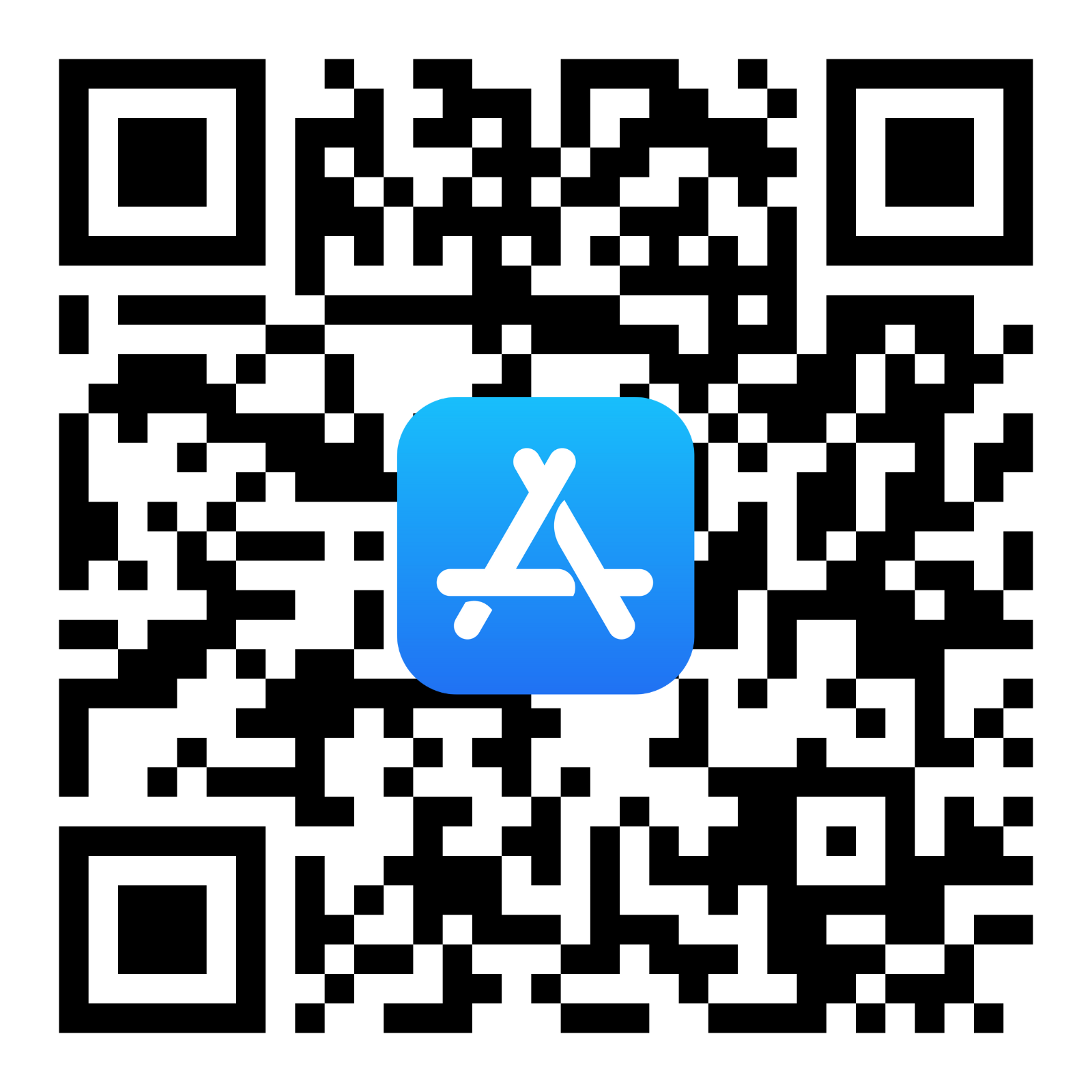
Dowload the app using the QR codes below.


Parentsquare FAQ
-
Parents/guardians/caregivers are automatically connected to ParentSquare but must activate their accounts to receive text messages, app notifications and voice calls through the system.
To activate your account, go to ParentSquare and on the right side of the screen in the “Sign Up/Create Password” area, enter the email address or cell phone number that you have on file with the school.
-
You will receive emails from the district at the email address we have on file for you, but you will not receive text messages, app notifications or any phone calls and will not be able to customize any of the message settings as outlined in this FAQ.
-
On the web browser, use Messages on the left to create a message thread with your child's teacher. Search for the teacher's name in the Recipient's box. You can also select your child from the left navigation panel and then select the Message icon to start a thread with the teacher. On the app, tap Messages and use the + icon to begin a message thread. Use Messages to initiate a conversation with teachers, staff or parent coordinator at your school. You can reply to a message from the principal, however, you cannot initiate a message to the principal.
-
There are two ways that you can customize the way you receive messages from ParentSquare: The type of message you receive and the timing of the message.
Type of Message You can choose to receive any or all of these message types through ParentSquare:
- Emails -Text Messages - App Notifications
Note: You would only receive a phone call in an emergency situation.Timing of the Message For each of the three message types listed above, you can select the timing of when you receive the messages in the following way:
- OFF: You will never receive this message type. (For example, you turn off text messages because you get app notifications.) - INSTANT: You receive all messages as soon as they are sent. - DIGEST: You receive all messages in a single notice at 6 p.m. each evening.
Note: You will not miss an urgent/emergency message if you select this because those types of messages are set to override the digest setting.
SchoolTool Information
Cobleskill-Richmondville Central School District uses SchoolTool as the primary hub for academic information. SchoolTool Parent Portal is a Web-based access portal in which families can log in to view their student’s grades, schedule, attendance, and other classroom-related updates.
Click this link to go to the Parent Portal login screen.
The link can also be found as an icon on the C-R District’s homepage under the main photo slideshow for easy access.
SchoolTool FAQ
-
a. Your user ID would be your email account.
b. Click on New User or Forgot Password and go through the steps.
c. Send an email or call your student’s guidance office for help.
-
The first person to contact would be your student’s school guidance secretary. If the problem is a more technical issue please contact our Parent Portal support team at sanderd@crcsd.org.
-
If you are listed as your child’s primary contact and have an email on record, you will be sent an email with the link to sign up for parent portal. If you would like an additional account, please contact your student’s guidance office.
-
Please contact your child’s guidance office with any change of information. Once your account change has been processed, your parent portal user name will be updated to reflect the new email address as well. You should allow from 24 to 48 hours for any changes to be reflected in the system.
-
No. A parent can access information for all of their children with one account.
-
Yes, but only for Apple/IPhone products. You can download the App by clicking or scanning the QR code below